Home
Readers' Portfolios
Submit Your Portfolio
Graphic Design Blog
Design Book Store
About This Website
Graphic Design Jobs
Write a Good Resume
Job Interview Tips
Learn About The Job
Finding Inspiration
Software to Learn
Student CS5 Discount
Common Paper Sizes
Color Mode Basics
Color Management
Press-Ready Images
Clipping Path Cutouts
Cutouts That Blend
Four Hair Cut Outs
Cutout Hair Tut #01
Cutout Hair Tut #02
Cutout Hair Tut #03
Cutout Hair Tut #04
Process/Spot Printing
Image File Formats
Bitmap Tutorial
Gimp v Photoshop
Convert Text to Paths
Create Vector Logo
Pre-Press Checklist
Overprinting Issues
Create InDesign Files
qxd indd Text Extract
Convert QXD to INDD
QXD to INDD Example
Q2ID In Action
ID2Q In Action
Convert PUB to INDD
Convert .PUB to .PDF
Quark Style Sheets
InDesign Style Sheets
5th Black Spot Color
Edit PDF Files Part 1
Edit PDF Files Part 2
Typing Accent Marks
Proofreading Marks
Proofreading Basics
Video Tutorials
Bling Layer Effects
Glassy Layer Styles
Photoshop Glass Tips
Royalty Free Images
Illustrator Tutorials
AI Illustration Tips
Illustrator Gradients
Gradient Mesh Tool
Illustrator Live Trace
InDesign Tutorials
INDD Transparency
Multiple Page Spread
Drop Shadow Issue
Reshaping an Advert
Font Recognition
Using Dreamweaver

[?] Subscribe To This Site

XML RSS
Add to Google
Add to My Yahoo!
Add to My MSN
Subscribe with Bloglines


EPS Drop Shadow Problem in InDesign - Two Solutions

If you're experiencing an EPS drop shadow problem in InDesign whereby you import an EPS file, apply a drop shadow to it only to find the shadow appears as a rectangle, then below is one reason why this might be occurring.

Recently I imported a vector graphic (saved as an EPS from Illustrator) into InDesign. The file was basically white text, to which I wanted to add a drop shadow in InDesign CS5. The result was that I ended up with the shadow below the vector image showing as a rectangle rather than following the shape of the lettering:
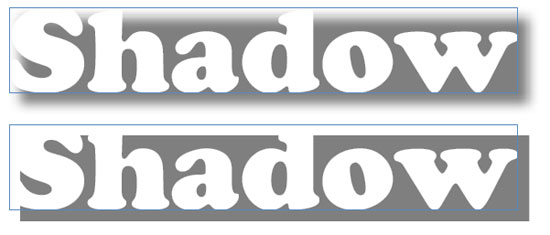
EPS Drop Shadow Problem in InDesign

EPS Drop Shadow Problem - Solution 1

The reason for this turned out to be pretty simple. When the EPS was saved in Illustrator CS5, in the Save As... dialogue box under Preview, the radio button for 'Transparent / Opaque' had 'Opaque' selected:
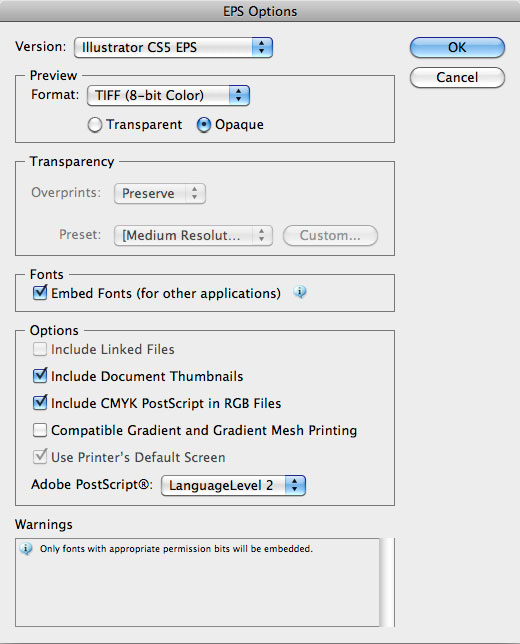
Illustrator EPS dialogue box - opaque Preview

All I had to do was change this to 'Transparent' and re-save the file:
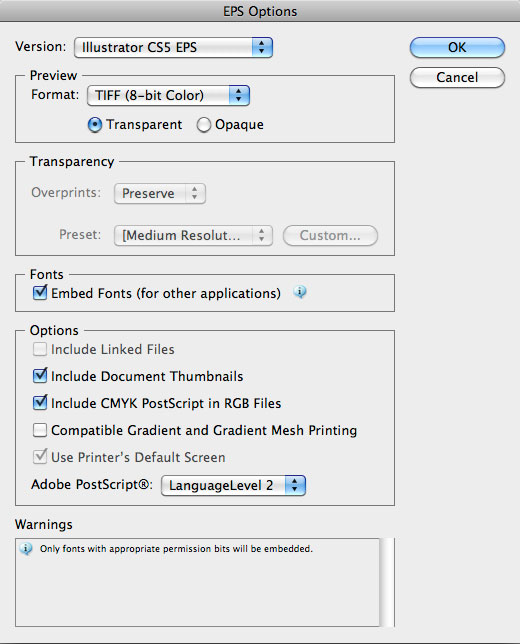
Illustrator EPS dialogue box - opaque Preview

Once the file was re-imported into InDesign (or the link updated), the result was correct:
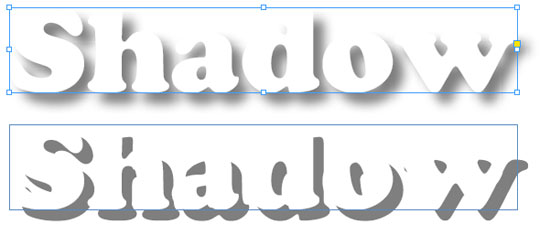
EPS Drop Shadow Problem - Solution 2

A second way to resolve this would be to save the file as a native Illustrator AI format instead of an EPS file. You can import these into InDesign just as easily. However, it's always a good idea to convert text to outlines (or paths) first. I tend to keep two files whenever I create vector artwork - an AI file for all the original material (including effects and fonts) and an EPS version with all fonts converted to paths for importing or distribution. Just remember (if importing AI files) to save an original version (for your future reference) and a 'flattened' version for general use.

Resources & More Information


Did you find this website useful? Did you find what you were looking for?
Please let us know and help us to improve our site.

Without your valuable feedback it's difficult to write new articles for Graphic Design Employment.com that are of use. Please click here and let us know what you thought of our site - and if you didn't find what you were looking for, please tell us so we can try to fill the gaps. Thanks for visiting, and we hope to hear from you.

Search Graphic-Design-Employment.com