How to Create Common Accent Marks on Apple Macs, Including French, German, Scandinavian & Spanish Accent Marks
A cautionary tale about accent marks!
When I learned how to use Apple Macs and make the transition from drawing board to computer monitor, I undertook an excellent crash course on desktop publishing and graphic design software. And of course I had to learn how to use an Apple Mac.
After settling into our seats for the first lesson, the tutor told us a little story. He told us about a student he had once taught - let's call him Pete - a full time undergraduate doing a 3 year graphic design degree.
Pete was a talented chap - he had a good eye, and he was pretty handy with Photoshop and Quark. Ken (the tutor) didn't think he would have too much trouble breaking into graphic design employment.
He was right. Within a couple of weeks Pete had landed his first job as a Mac operator. Not exactly a dream position, but excellent work experience and a good intro to the industry.
Two hours into Pete's first day at work, Ken was finishing a class when Pete walked in looking a little down in the mouth.
"Isn't this supposed to be your first day at work" Ken asked. It had been, Pete explained. He'd turned up and been given some text to type into a document... some Spanish text.
He didn't have too much trouble until he tried to key in the Spanish accent marks - he had absolutely no idea how to do it. No one had ever shown him. His boss was, to say the least, unimpressed that his new designer was unable to perform the seemingly simplest of tasks.
And he dismissed him on the spot.
After listening to this tale of woe, I've never been so eager to learn anything as I was to learn how to type in accent marks - and luckily for us, Ken obliged.
Remember, this was before the handy Keyboard utility of OSX which now tells you everything you need to know. Just open the viewer from the top right flag icon (or Character Palette icon) of your Apple menu and press the ALT key. Click one of the orange keys that appear. Release the ALT key and you'll see the available accented letters at your disposal.
Using the Adobe Glyphs palette
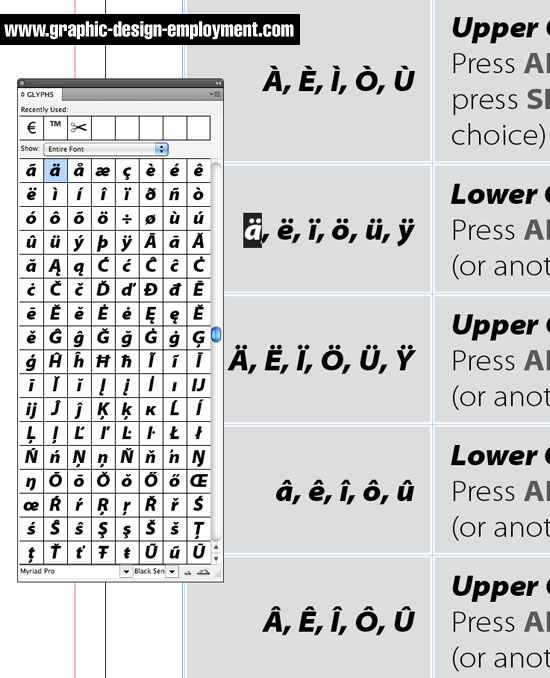
If you happen to be working in Adobe InDesign or Adobe Illustrator, the Glyphs palette will help you find every single character available for your selected font, including all accented characters and a hundred more besides (see the palette open below). To access the glyphs, in either programme select Type/Glyphs from the main menu. Locate the character you want and double click it to place it within your text. If you have a character selected already, the Glyphs palette will give you the option of viewing all 'Alternatives for Selection' which narrows the field nicely.
Using Keyboard Shortcuts
The most efficient workflow comes from learning the keyboard shortcuts by heart. You'll find the Apple Mac keyboard shortcuts for the most common accent marks in this table:
| á, é, í, ó, ú | Lower Case Acute Accent Press ALT+E, release, then press A (or another vowel of your choice) |
| Á, É, Í, Ó, Ú | Upper Case Acute Accent Press ALT+E, release, then press SHIFT+A (or another vowel of your choice) |
| à, è, ì, ò, ù | Lower Case Grave Accent Press ALT+` (to the left of Z), release, then press A (or another vowel of your choice) |
| À, È, Ì, Ò, Ù | Upper Case Grave Accent Press ALT+` (to the left of Z), release, then press SHIFT+A (or another vowel of your choice) |
| ä, ë, ï, ö, ü, ÿ | Lower Case Umlaut Accent Press ALT+U, release, then press A (or another letter of your choice) |
| Ä, Ë, Ï, Ö, Ü, Ÿ | Upper Case Umlaut Accent Press ALT+U, release, then press SHIFT+A (or another letter of your choice) |
| â, ê, î, ô, û | Lower Case Circumflex Accent Press ALT+I, release, then press A (or another vowel of your choice) |
| Â, Ê, Î, Ô, Û | Upper Case Circumflex Accent Press ALT+I, release, then press SHIFT+A (or another vowel of your choice) |
| ã, õ, ñ | Lower Case Tilde Accent Press ALT+N, release, then A (or another letter of your choice) |
| Ã, Õ, Ñ | Upper Case Tilde Accent Press ALT+N, release, then SHIFT+A (or another letter of your choice) |
| ç | Lower Case Circumflex Accent Press ALT+C |
| Ç | Upper Case Circumflex Accent Press ALT+SHIFT+C |
| ¿ | Inverted Question Mark Press ALT+SHIFT+/ |
| ¡ | Inverted Exclamation Mark Press ALT+1 |
| ß | Scharfes-S. Press ALT+S |
| ø | Lower Case O With Slash Press ALT+O |
| Ø | Upper Case O With Slash Press ALT+SHIFT+O |
| å | Lower Case A With Ring Press ALT+A |
| Å | Upper Case A With Ring Press ALT+SHIFT+A |
Don't mess up your chances of graphic design employment because you don't know your accent marks!

Resources & More Information
- Download a free PDF Cheat Sheet of this accent marks table
- Click to go to top of Common Accent Marks page


