Quark to InDesign conversion using Markzware Q2ID InDesign Plugin
There are two main ways to convert Quark to InDesign
- By back-saving Quark files to Quark XPress version 4 and then opening them in InDesign (click here to find out how)
- By using the Q2ID InDesign plugin by Markzware (see how it works below)
This article briefly shows how the Markzware Q2ID InDesign plugin works.
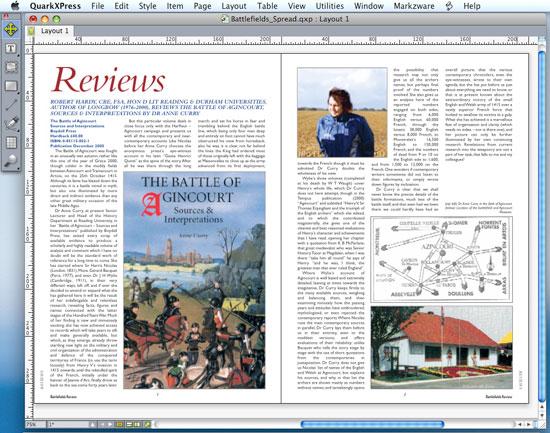
First, select your Quark document. The spread shown below was created in Quark XPress 8. Make sure that all fonts are present and all images are correctly linked. You can do this by using the UTILITIES/USAGE... dialogue box. Once everything is present and correct, we can move onto InDesign.
Quark to InDesign
Install the plugin
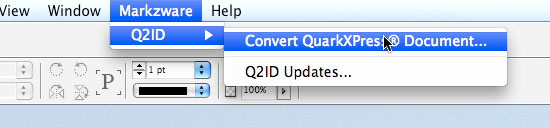
Make sure you install the correct version plugin into your InDesign PLUG-INS/FILTERS folder before starting InDesign. Once you've installed Q2ID and launched InDesign (you'll need to enter your Activation Code when prompted) a new menu item, "Markzware", will appear at the top of the screen.
When I first installed the plugin into InDesign CS4 (this was an earlier version of the plugin), the Markzware menu item showed the following strange text:

This was resolved by closing InDesign, downloading the latest updated plugin from the Markzware site, re-installing it (by overwriting the old version) and re-launching InDesign. Then I was presented with the correct menu item as shown below:
Quark to InDesign
Open the Document in InDesign
Now you're ready to import your Quark file. My spread was imported very quickly, and although the resulting page wasn't perfect (no conversion ever will be), it was as good as any back-saving conversion I had ever carried out, and much faster.
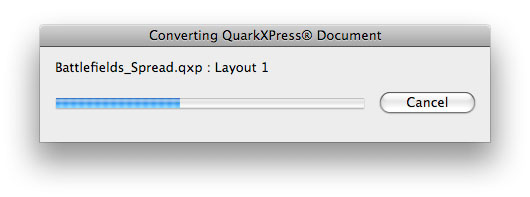
If I didn't have the plugin I would have had to back-save to Quark 7, open the file in Q7 and back-save to Quark 6, open Q6 and back-save to Quark 5, open Q5 in Classic and back-save to Quark 4, and finally open the Q4 file in InDesign. Never again! This progress bar does away with all that effort:
Quark to InDesign
Check the document for layout and style differences
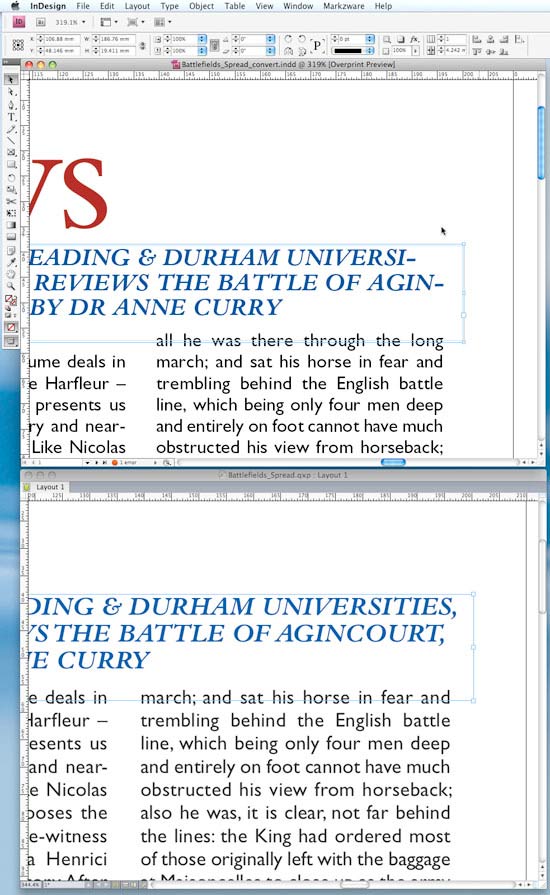
As Markzware states, no conversion will ever be perfect and there will always be work to do on the converted document. This one was no exception. Below is a comparison of a detail of the page (top is the converted InDesign file, and bottom is the original Quark file). Essentially the conversion was faithful. The Master Pages were retained, as were the Guides, Color Swatches and Style Sheets (called Paragraph and Character Styles in InDesign). However, some immediately obvious differences between the documents could be found in the hyphenation rules and the flow of the text.
Quark to InDesign
Update the Paragraph and Character Styles
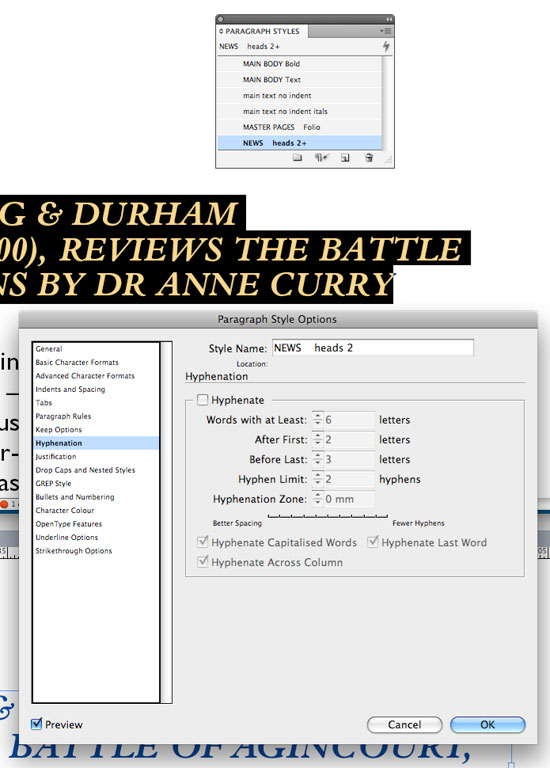
Because the text styles were retained, the hyphenation and other tweaks could easily be fixed in the Paragraph Styles panel without having to select every block of text in the document. Below shows the hyphenation switched off in the Paragraph Styles:
Quark to InDesign
Scrutinise and Save
Other glitches are quickly and easily resolved by scrutinising the document and tweaking widths and styles here and there. This can be time consuming, but it's still much quicker than re-creating the document from scratch. Here are the two finished documents for comparison (InDesign on top, Quark beneath).
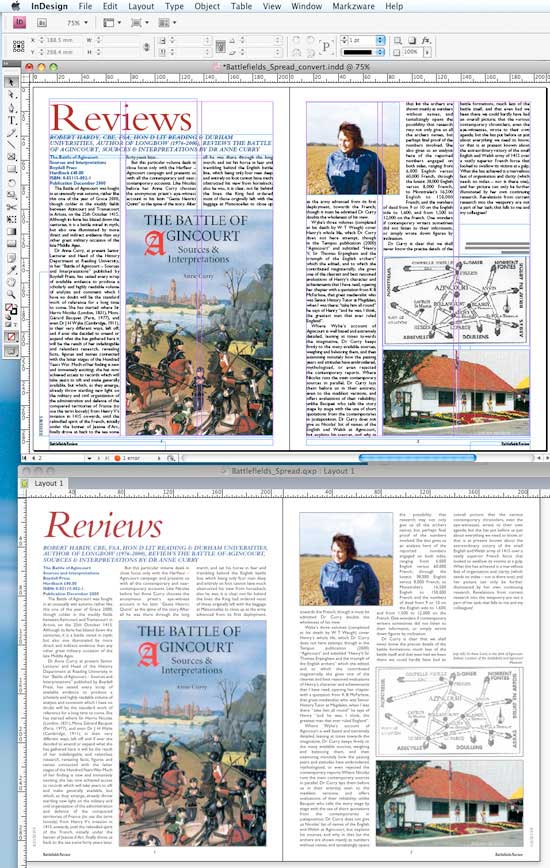
And you're done! My opinion of Q2ID is that although the conversion isn't perfect, it does as good a job as the slower method of conversion, if not better (and it's much faster, obviously).
Resources & More Information
- Q2ID - converts Quark Files to InDesign Files
- Quark to InDesign Conversion Service - Tinstar Design
- Case Study: Convert InDesign to Quark Using ID2Q Quark XPress Plugin
- Case Study: Using the Pub2ID plugin to Convert Publisher Files to InDesign
- Case Study: Convert Quark XPress to InDesign Using Q2ID InDesign Plugin
- Case Study: Free Quark XPress to InDesign Conversion Method
- InDesign updates from Adobe - Mac users click here and Windows users click here
- Click to go to top of Quark to InDesign page


